We’ve chosen Mahara because it is a robust, open-source platform designed specifically for creating and sharing portfolios. Gaia U has been using Mahara since 2010, and it has proven to be a reliable, flexible, and sustainable tool for both students and mentors. Its open-source nature aligns with our values of accessibility, transparency, and community-driven innovation, allowing us to adapt and evolve our portfolio approach over time. You may hear us reference this platform as Mahara or iCAAFS, but it is the same site. For the purpose of this Module, we will refer to the site as iCAAFS throughout the remainder of this text (iCAAFS is an acronym for the International Coalition for the Accreditation of Ancient and Future Skills).
At around six months into your program, you’ll also be using iCAAFS for your Project Outputs, so building familiarity now will serve you well throughout your program and will be explained in the Life and Career Review Module which starts a few months after your program begins. This module will guide you through setting up your portfolio pages, adding content, and using iCAAFSs tools to present your work and learning journey persuasively.
This module is designed to be light on the reading, instead providing you with visual aids to assist you in the process of uploading your documentation into iCAAFS. You will also notice that there is not an activity section in this Module, because each section is essentially an activity.
You should already have your log-in info for iCAAFS, if not, please email info@gaiau.org to have that set up.
To get started, you may choose to take some time to familiarize yourself with the template we’ll be building out from in iCAAFS here: https://icaafs.earth/view/view.php?t=NHy86GVk4pJ9KX12B0su.
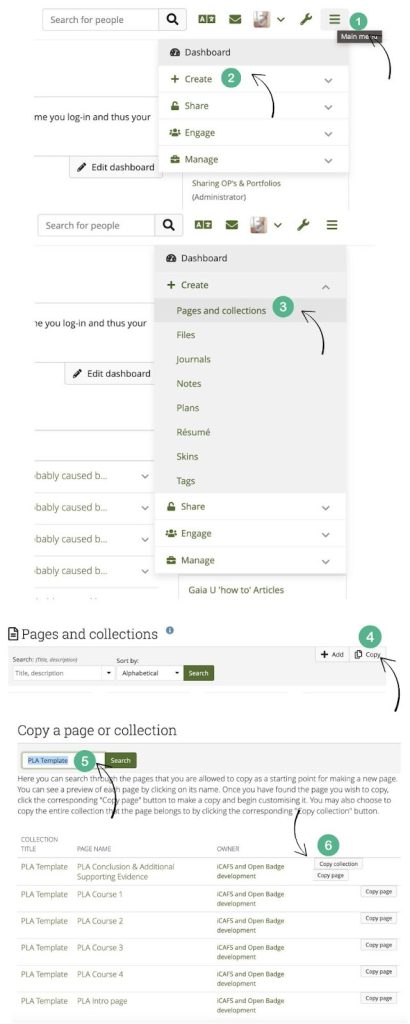
To copy a collection, you must use your login credentials to enter the iCAAFS portal.
- Click the icon with the three lines on the top right hand corner to view a dropdown menu
- Click on “Create”
- Select “Pages and collections”
- In the “Pages and Collections” page, click on “Copy”
- Enter “PLA Template” into the search bar and hit enter
- There will be 6 pages listed, click at the top where it says “Copy collection”
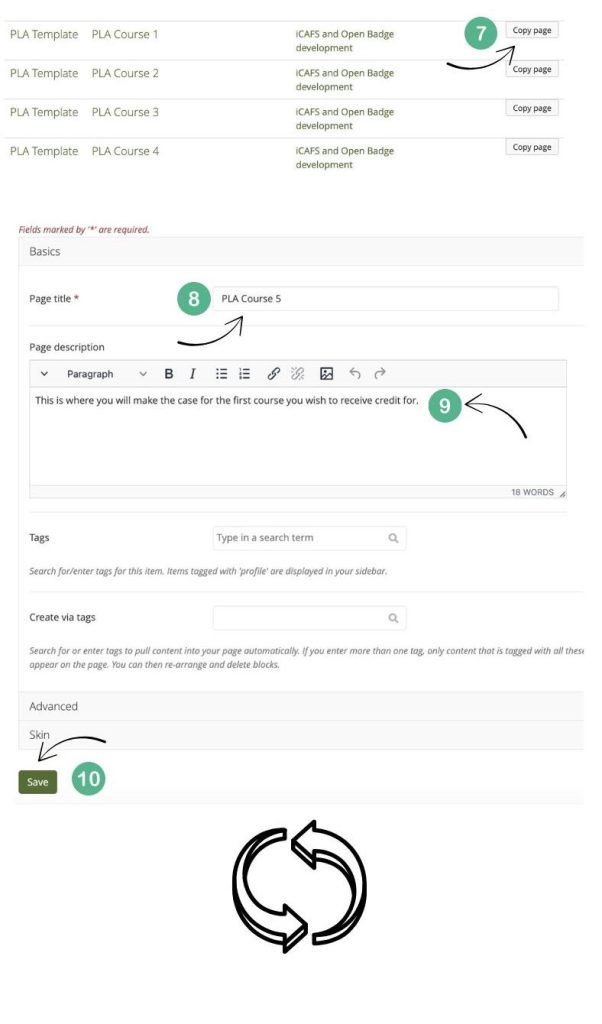
- If you have more than 4 course entries to submit, you will need to copy pages for each additional course. So, In another tab, repeat steps 1-5 but instead of clicking on copy collection, click on “copy page” next to one of the PLA Courses.
- Rename each Page title so that you know which order it will go in your portfolio.
- Enter a description of the course if you have that ready, you can come back to this later.
- Click “Save”
*You will need repeat steps 7-10 for each additional course you are seeking credit for.